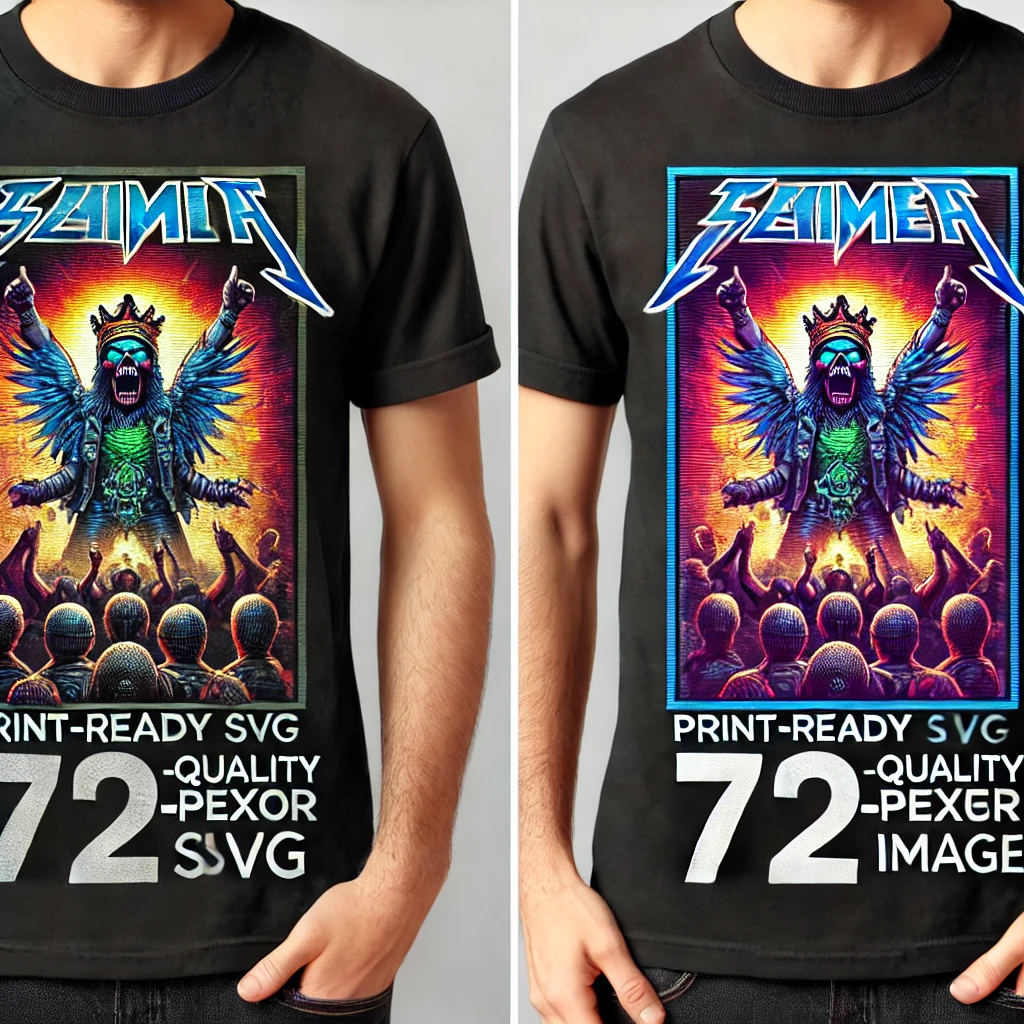
Why AI-Generated Images Often Aren’t Print-Ready for Merchandise
(And What You Can Do About It)
AI-generated images are revolutionizing the creative world, enabling artists, bands, and brands to create stunning visuals quickly and affordably. However, when it comes to translating those digital creations onto physical merchandise like t-shirts, posters, or mugs, many discover an inconvenient truth: AI-generated images often aren’t high-quality enough for printing.
Here’s why that happens—and how you can ensure your AI-generated designs are ready to shine on your merch.
The Problem with AI-Generated Images for Printing
AI tools are designed to generate beautiful visuals optimized for digital viewing, often at a resolution of 1024×1024 pixels. While that’s great for online platforms, it’s typically far below the quality required for high-resolution printing.
Here are the key challenges:
- Low Resolution:
Print-ready files need to have a resolution of at least 300 DPI (dots per inch) to ensure clarity and detail. A 1024×1024 pixel image may look sharp on a screen but will appear blurry or pixelated when scaled up for a t-shirt or poster. - File Format Issues:
AI tools often export images in formats like JPEG or PNG, which are fine for basic use but may not include the vector-based quality necessary for certain types of merch, like screen printing. - Color Profiles:
AI-generated images often use RGB (red, green, blue) color profiles designed for screens. However, most printing requires CMYK (cyan, magenta, yellow, key/black) profiles. Without conversion, colors may appear faded or inaccurate when printed.
How to Prepare AI-Generated Images for Merch Printing
To make your AI designs merch-ready, you’ll need to upscale, enhance, and convert them. Here’s how:
1. Upscaling the Image
To increase the resolution without losing quality, use professional upscaling tools such as:
- Adobe Photoshop: Allows you to enlarge images with AI-powered features like Preserve Details 2.0.
- Dedicated Upscalers: Tools like Gigapixel AI or online services like Waifu2x can upscale images while maintaining sharpness.
When upscaling, aim for dimensions that meet or exceed the size of your intended print area. For example, a 12×12-inch t-shirt design at 300 DPI requires a resolution of 3600×3600 pixels.
2. Convert to Vector (If Needed)
For certain printing methods, such as screen printing or vinyl cutting, converting your image to a vector format (like SVG or EPS) ensures scalability without loss of quality. Tools like Adobe Illustrator or CorelDRAW can help with this process.
3. Adjusting the Color Profile
Ensure your image is converted from RGB to CMYK to match the printer’s requirements. Tools like Photoshop or free alternatives like GIMP allow you to change the color mode, ensuring accurate reproduction of your design’s colors.
4. File Format and Layers
Save your file in a format preferred by your printer, such as TIFF or PDF. These formats preserve detail and layers, making them ideal for editing or multi-color printing.
Tips for Better Results
- Start with Higher Resolution AI Outputs: Some AI tools allow for larger image sizes; always choose the highest available resolution.
- Collaborate with Designers: For complex projects, consider hiring a graphic designer to refine your image, especially if vectorization or detailed adjustments are needed.
- Test Print: Always run a small batch test to ensure your design looks great on physical products before committing to large-scale production.
Why It’s Worth the Effort
The process of upscaling and converting AI-generated images may seem tedious, but it ensures your merchandise looks professional and appeals to your audience. Low-quality prints can leave a negative impression, while sharp, vibrant designs build your brand and satisfy your fans.
By taking the time to properly prepare your designs, you turn AI-generated inspiration into polished, sellable products that truly stand out.
Do you have questions about preparing your merch designs? Share your experiences in the comments below!
Also add in that more detailed and multi colored images can be difficult to convert and may be more expensive to print, increasing the costs
Why AI-Generated Images Often Aren’t Print-Ready for Merchandise (And What You Can Do About It)
AI-generated images are revolutionizing the creative world, enabling artists, bands, and brands to create stunning visuals quickly and affordably. However, when it comes to translating those digital creations onto physical merchandise like t-shirts, posters, or mugs, many discover an inconvenient truth: AI-generated images often aren’t high-quality enough for printing.
Here’s why that happens—and how you can ensure your AI-generated designs are ready to shine on your merch.
The Problem with AI-Generated Images for Printing
AI tools are designed to generate beautiful visuals optimized for digital viewing, often at a resolution of 1024×1024 pixels. While that’s great for online platforms, it’s typically far below the quality required for high-resolution printing.
Here are the key challenges:
- Low Resolution:
Print-ready files need to have a resolution of at least 300 DPI (dots per inch) to ensure clarity and detail. A 1024×1024 pixel image may look sharp on a screen but will appear blurry or pixelated when scaled up for a t-shirt or poster. - File Format Issues:
AI tools often export images in formats like JPEG or PNG, which are fine for basic use but may not include the vector-based quality necessary for certain types of merch, like screen printing. - Color Profiles:
AI-generated images often use RGB (red, green, blue) color profiles designed for screens. However, most printing requires CMYK (cyan, magenta, yellow, key/black) profiles. Without conversion, colors may appear faded or inaccurate when printed. - Complexity of Detailed and Multi-Colored Images:
AI-generated images with intricate details or a wide range of colors can be challenging to reproduce. Translating these designs into print-ready formats often requires significant work, including separating colors for certain printing methods (like screen printing) or simplifying the design to reduce costs.
How Complexity Impacts Printing Costs
When an AI design has many fine details or uses a wide spectrum of colors, the production process becomes more time-intensive and expensive. Here’s why:
- Color Separation: For screen printing, each color in the design requires its own screen. Multi-colored designs increase both setup time and material costs.
- Higher Ink Costs: Full-color printing or designs with gradients and shading often require more ink and specialized printing techniques like direct-to-garment (DTG) printing, which can raise costs.
- Complexity in Adjustments: Simplifying or converting detailed images into print-ready formats often requires professional intervention, adding design labor costs to the overall expense.
As a result, overly intricate AI-generated designs may not be cost-effective for smaller print runs or certain types of merchandise.
How to Prepare AI-Generated Images for Merch Printing
To make your AI designs merch-ready, you’ll need to upscale, enhance, and convert them. Amplify Merch can help you get these images merch ready! Here’s how:
1. Upscaling the Image
To increase the resolution without losing quality, use professional upscaling tools such as:
- Adobe Photoshop: Allows you to enlarge images with AI-powered features like Preserve Details 2.0.
- Dedicated Upscalers: Tools like Gigapixel AI or online services like Waifu2x can upscale images while maintaining sharpness.
When upscaling, aim for dimensions that meet or exceed the size of your intended print area. For example, a 12×12-inch t-shirt design at 300 DPI requires a resolution of 3600×3600 pixels.
2. Convert to Vector (If Needed)
For certain printing methods, such as screen printing or vinyl cutting, converting your image to a vector format (like SVG or EPS) ensures scalability without loss of quality. Tools like Adobe Illustrator or CorelDRAW can help with this process.
3. Adjusting the Color Profile
Ensure your image is converted from RGB to CMYK to match the printer’s requirements. Tools like Photoshop or free alternatives like GIMP allow you to change the color mode, ensuring accurate reproduction of your design’s colors.
4. Simplifying Complex Designs
If your AI-generated image is too detailed or uses a broad color palette, consider simplifying the design to make it more print-friendly. This could involve:
- Reducing the number of colors.
- Simplifying fine details or intricate patterns.
- Consulting with us to determine the most cost-effective adjustments.
Tips for Better Results
- Start with Higher Resolution AI Outputs: Some AI tools allow for larger image sizes; always choose the highest available resolution.
- Collaborate with Designers: For complex projects, consider hiring a graphic designer to refine your image, especially if vectorization or detailed adjustments are needed.
- Balance Creativity with Practicality: Keep in mind that simpler designs are often more cost-effective to produce and can still make a bold statement.
- Test Print: Always run a small batch test to ensure your design looks great on physical products before committing to large-scale production.
Why It’s Worth the Effort
The process of upscaling and converting AI-generated images may seem tedious, but it ensures your merchandise looks professional and appeals to your audience. Low-quality prints can leave a negative impression, while sharp, vibrant designs build your brand and satisfy your fans.
While intricate, multi-colored AI designs may increase production costs, they can also result in stunning merchandise when prepared correctly. By striking the right balance between creativity and practicality, you can turn your AI-generated designs into merch that stands out in quality and appeal.
Do you have questions about preparing your merch designs? Share your experiences in the comments below or contact us.